Transactions Fee
Unlock Model
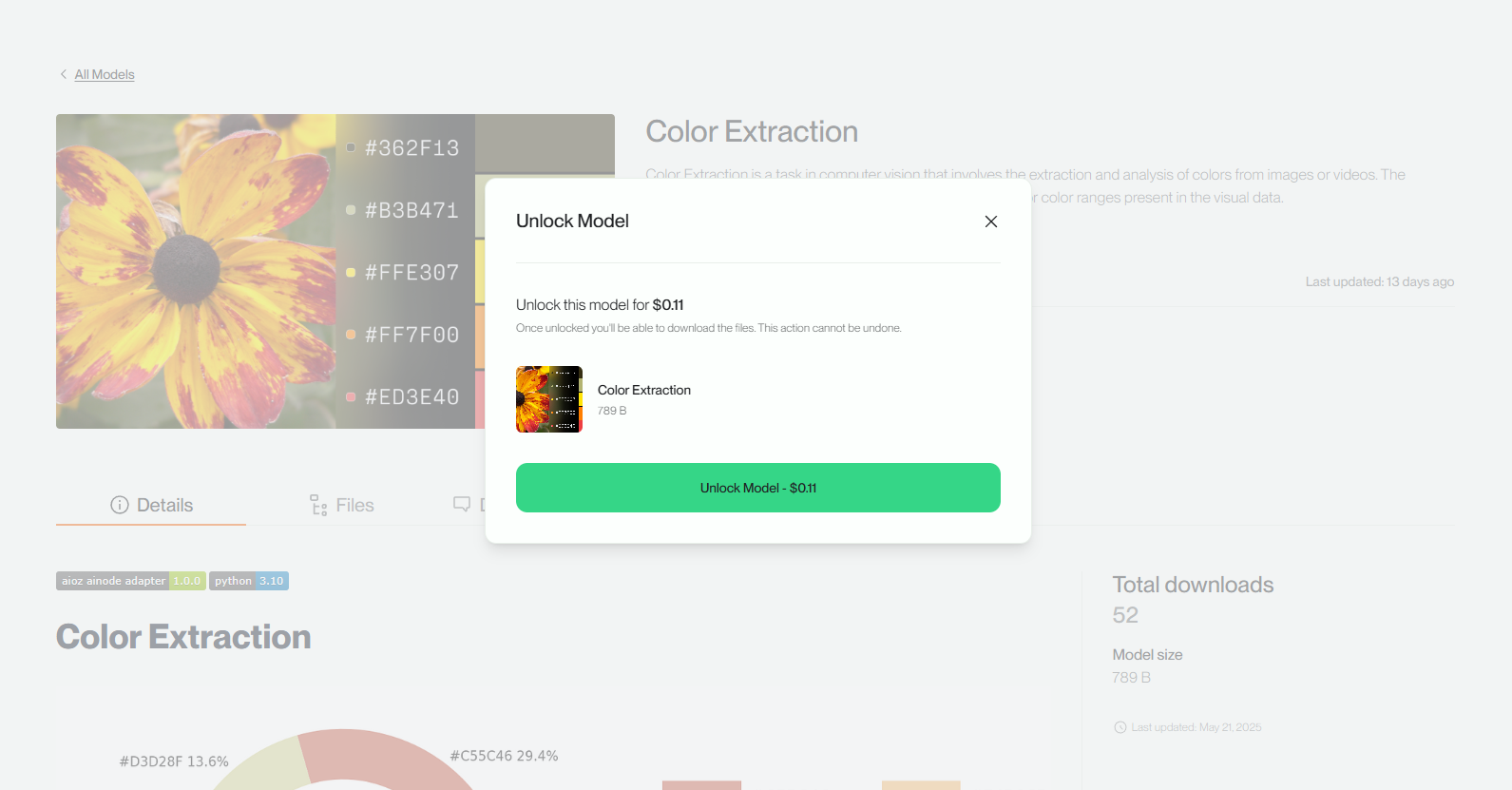
If you want to unlock a model, go to the details of that model, click the Unlock Model button. Then confirm at the Unlock Model popup that you accept to unlock the model at the price displayed on the popup.
-
Step 1: Choose the model that you want to unlock.
-
Step 2: Select Unlock Model button.
-
Step 3: In popup Unlock Model, click on the Unlock Model button to confirm.
Note:
1. This action cannot be undone! 2. Verify that the prices displayed on the model and on the popup are not different! 3. If your AI account does not have enough balance to cover this transaction, a warning will appear that your balance is insufficient. This means you will need to top up your balance to continue…
Download Model
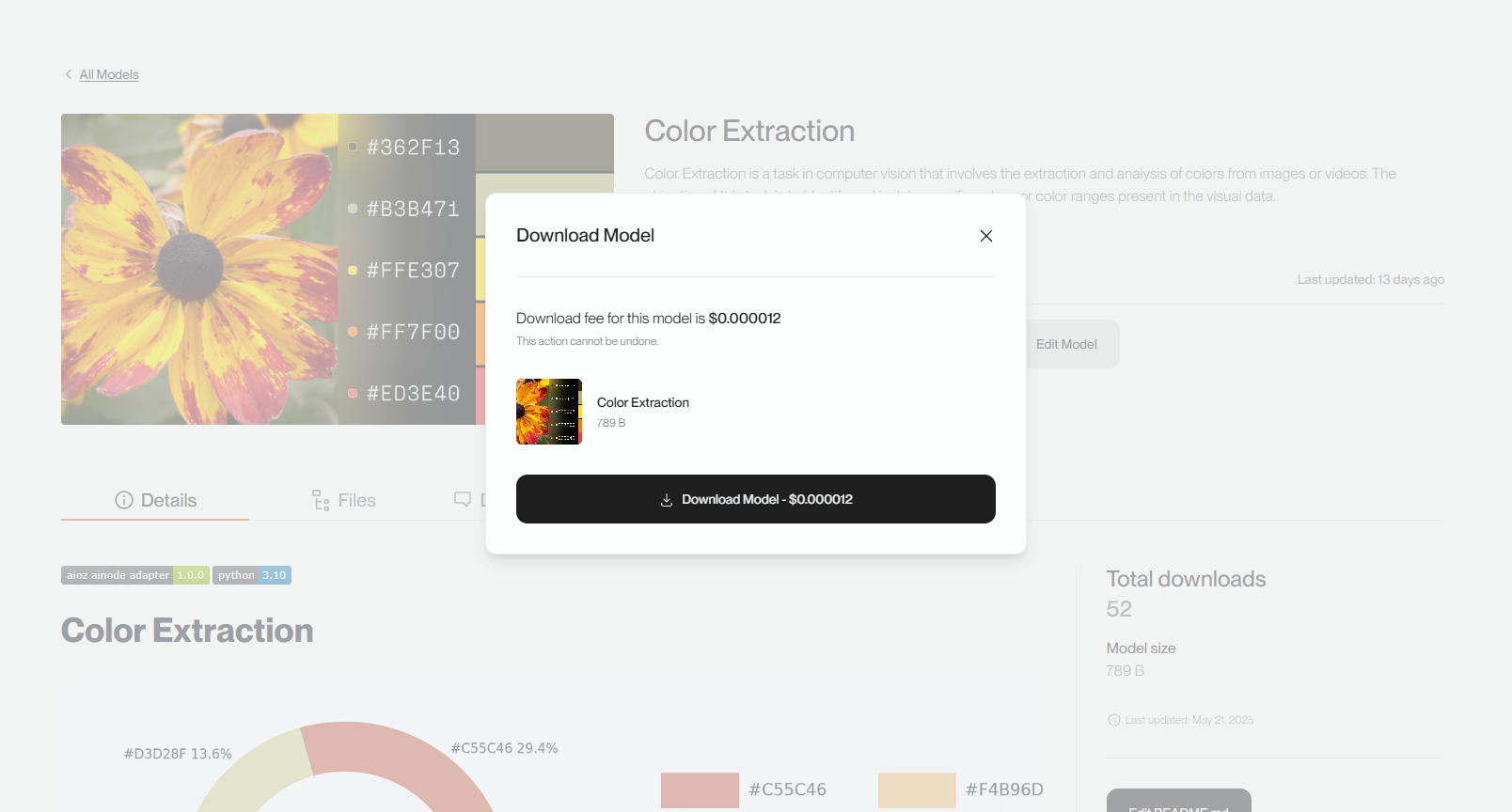
After unlocking the model successfully, you can download this model. Still on the model details page, select the Download Model button. Then confirm at the Download Model popup that you accept to download the model.
-
Step 1: Choose the model you have successfully unlocked.
-
Step 2: Select Download model button.
-
Step 3: In popup Download Model, click on the Download Model button to confirm.
You can review the transaction history at Recent Debits/Credits -> Spending/Reward.